Connecting an Android device to the Google Play Store relies on a properly configured Google account, but also on a set of technical prerequisites that most guides overlook. Play Protect certification, version of Google Play services, sideloading restrictions: these settings determine access to applications well before the connection step itself.
Play Protect Certification and Access to the Google Play Store
Before even entering a Gmail address, an Android device must be Play Protect certified to access the Play Store. This certification ensures that the manufacturer has met the compatibility requirements imposed by Google. An uncertified phone (imported outside the official network, or flashed with an unvalidated ROM) will display errors when installing applications, or may not even show the Play Store in the list of applications at all.
To check the certification status, open the Google Play Store app, tap on the profile icon in the top right corner, then go to Settings and tap on About. The certification status appears in this section.
An uncertified device can sometimes be manually registered with Google via its Android ID, but this procedure is reserved for specific cases (custom devices, developers). For the majority of users, a smartphone or tablet purchased commercially through an official network will already be certified. A detailed guide explains how to connect to Google Play Store taking this preliminary step into account.
Android Device: Steps to Connect to Google Account
Connecting to the Play Store involves adding a Google account in the device settings. This account (Gmail address or Google Workspace) serves as the access key to the entire ecosystem: downloading applications, purchases, data synchronization.
Procedure on Android Smartphone or Tablet
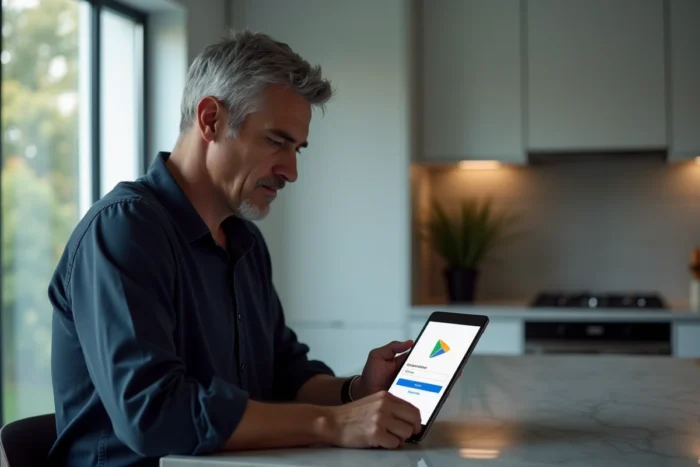
- Open your device’s settings, then go to the Accounts section (sometimes named Users and accounts depending on the manufacturer’s overlay).
- Tap on Add account, select Google, then enter your Gmail address and password. If two-step verification is enabled, confirm via the second factor.
- Once the account is added, open the Google Play Store app. The device is automatically linked to the account, and your application and purchase history becomes accessible.
On a new device during initial setup, Android offers to add the Google account right from the first steps. The Play Store is then available immediately after the setup wizard is completed.
Case of Devices with Multiple Accounts
Android allows the addition of multiple Google accounts on the same device. In the Play Store, the active profile is selected by tapping on the profile icon. Each account has its own purchase history and its own subscriptions. Applications purchased on one account are not transferable to another.
Common Errors and Settings to Check on Android
Several blocks prevent connection or downloading applications from the Play Store. The most common causes are not related to the account itself.
| Problem | Likely Cause | Solution |
|---|---|---|
| Play Store won’t open | Corrupted cache or data | Settings > Apps > Google Play Store > Clear cache, then Clear data |
| License error | Conflict between multiple accounts | Check the active account in the Play Store, remove and re-add the account if necessary |
| Download blocked | Active VPN or network restriction | Disable the VPN, check Wi-Fi or mobile data connection |
| Application unavailable | Device incompatibility or geographical restriction | Check the minimum required Android version for the application |
| Message “device not certified” | Unofficial ROM or unlocked bootloader | Check Play Protect certification in Settings > About |
Clearing the Play Store cache resolves most blocks without deleting any personal data. This operation takes a few seconds and does not uninstall anything.
Sideloading and Developer Verification: What Changes in 2026
Installing applications outside the Play Store (sideloading) is becoming more complex. Android is gradually introducing a developer verification mechanism that conditions the installation of any application, including those from third-party stores like the Galaxy Store, Xiaomi GetApps, or HONOR.
Any application installed on a certified Android device must be linked to a verified developer. Otherwise, the system will block the installation before it even starts. This verification service acts upstream of Google Play services.
Meanwhile, an “Advanced Flow” for sideloading will require enabling an option in developer settings, manually confirming the installation, and adhering to a waiting period before being able to install APKs from external sources. The first pilot countries are expected to start in September 2026, with a global rollout in 2027.
For a user trying to reconnect a device to the Play Store after a reset or ROM change, these restrictions add an extra layer of verification. The Google account alone is no longer sufficient to guarantee full access to application downloads.
Google Play Services and Google Play Store: Distinction to Know
A common confusion concerns the difference between Google Play services and the Google Play Store. Google Play services are a system component that manages authentication, data synchronization, push notifications, and connection to other devices (Android Auto, Chromecast). The Play Store is the download application.
Updating Google Play services is done through the Play Store itself (Settings > About > Play Store version). An outdated version of the services can cause connection errors or prevent recent applications from functioning.
Connecting a device to the Play Store therefore depends on two distinct software layers. A malfunction of Google Play services will affect the Play Store, but the reverse is not true. Keeping these two components up to date remains the most effective precaution to avoid access issues to applications on an Android device.